Edit your subtitles online

Upload a subtitle file, change the words and timing, then download your edited SRT or VTT.

Drop your subtitle file here

SRT or VTT · Up to 2 MB

Free · No account needed · Files stay in your browser

Edit every line

Correct typos, change wording and add line breaks. Search for a word and replace it across the file.

Adjust the timing

Change start and end times to the millisecond. Add a subtitle or remove a line you no longer need.

Download SRT or VTT

Export your edited subtitles and use them in YouTube, a video editor or a media player.

How to edit a subtitle file

  1. 01

    Open your file

    Drop an SRT or VTT into the upload box, or try the example to explore the editor.

  2. 02

    Make your changes

    Edit text and timestamps directly. Use find and replace for repeated words, or add and delete subtitles.

  3. 03

    Download the result

    Choose SRT or VTT and download the edited file. Keep a copy before closing the page.

What can you edit in an SRT or VTT file?

Make the changes you need without rewriting subtitle file syntax. The screenshots below use example subtitles in the same editor available above.

Edit subtitle text and adjust individual timestamps

Open an SRT or WebVTT file and edit the text box for the cue you want to change. Correct a transcription error, refine a translation or add a single line break between phrases. Text-only changes leave that cue's start and end times unchanged.

To adjust when a subtitle appears, edit its Start and End fields. For example, change 00:00:03,500 to 00:00:03,750 to keep it visible for another quarter second. The end must be later than the start. If the whole file is late or early, use the separate timestamp shift tool instead of changing every cue.

Use Add subtitle for missing dialogue and Delete for an unwanted cue. Undo and Redo let you step back through recent edits. Timing overlaps are allowed for intentional simultaneous dialogue; check the result in your player.
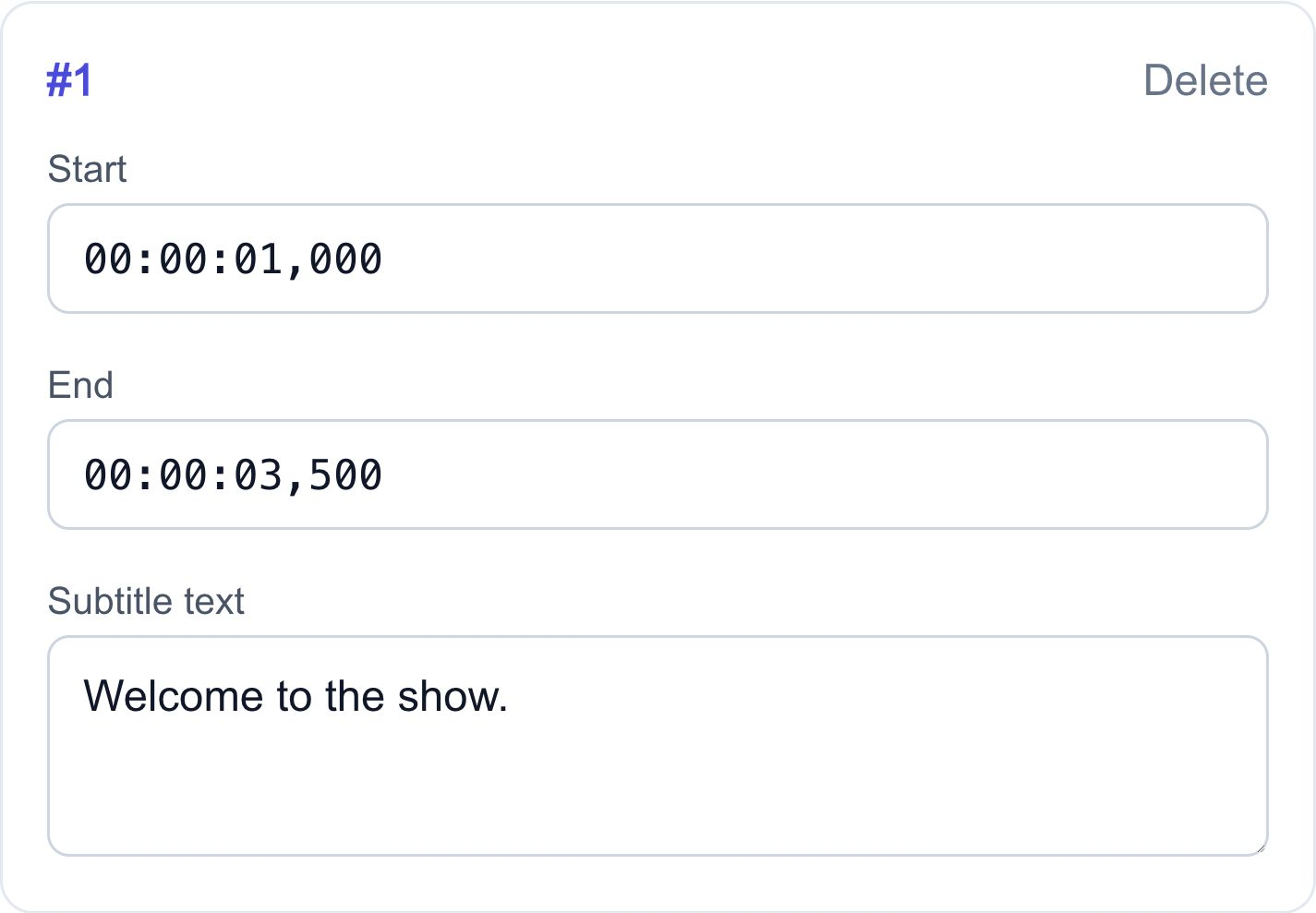
Subtitle editor with separate start time, end time and editable subtitle text fields
Change the words or timing independently. The editor checks timestamp format before export.

Find and replace names or repeated words

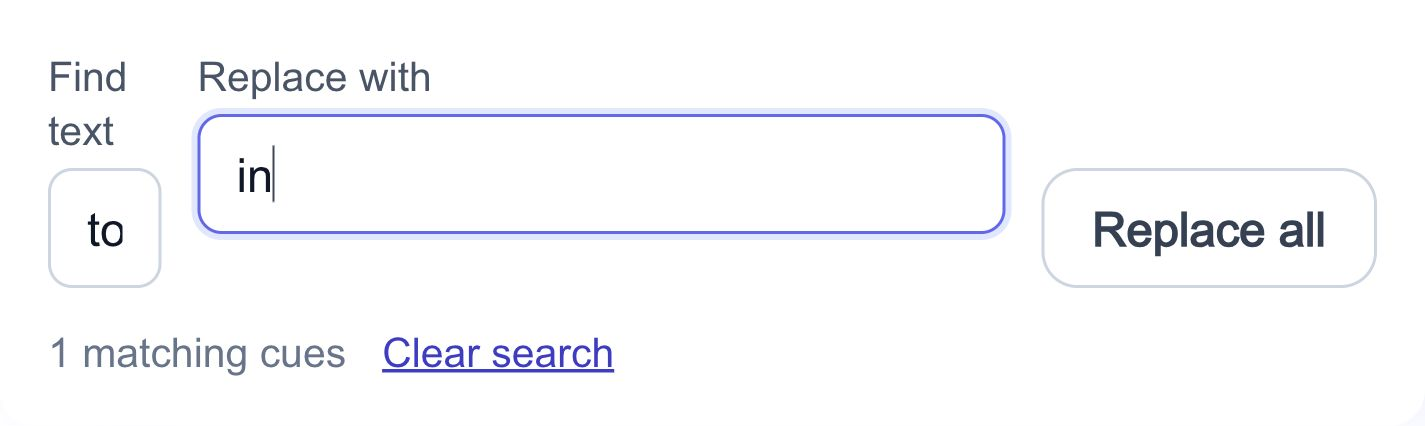
Type a word in Find text to show matching cues across the file, including cues on other pages. Search for a misspelled guest name, a product term or a repeated phrase before deciding what to replace.

Enter the replacement and choose Replace all. Matching is literal and case-sensitive: Ann and ann are different, and punctuation such as a full stop is treated as text, not a regular expression. Only subtitle text changes; timestamps stay intact.

Clear the search to see all cues again. When a file contains bilingual subtitles, a matching word in either language can be replaced, so check the affected lines and use Undo if the change was too broad.

Subtitle find and replace controls showing the matching cue count and an editable subtitle
Review matching subtitles before replacing a recurring name or term.

Save your edited subtitles as SRT or WebVTT

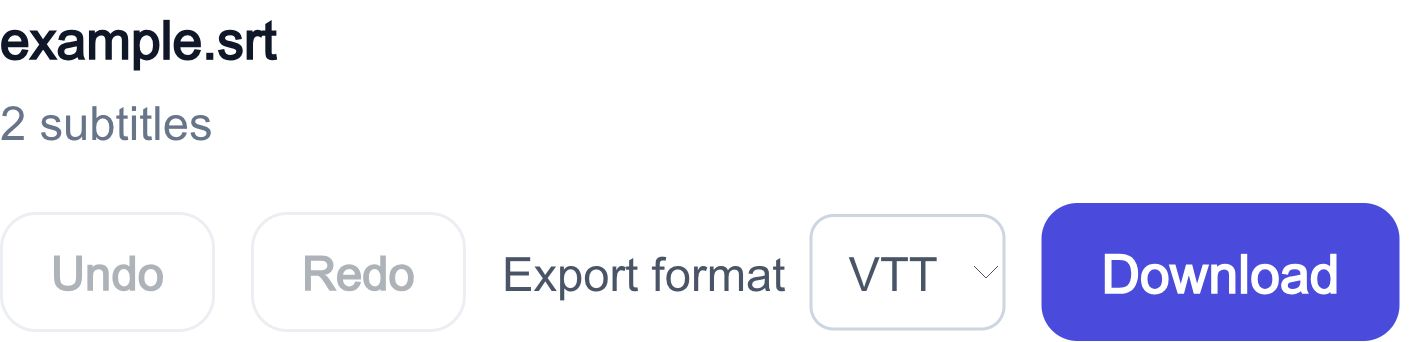
Choose SRT or VTT under Export format, then Download. SRT is a practical handoff for many video editors and subtitle upload workflows; WebVTT is useful for web caption tracks. Select the format accepted by your destination.

SRT output is numbered in the current cue order. When keeping WebVTT as VTT, its cue identifiers, positioning settings and metadata are retained. Converting WebVTT to SRT keeps text and timing, but not VTT-specific styling or positioning.

Download is unavailable when a cue has an invalid interval, empty text or a blank line inside its text. Fix the highlighted cue first. Save the file before closing the tab, then preview it against the final video; browser edits are not automatically saved to an account.

Subtitle export controls with VTT selected and the Download button
Pick the output format and download a separate edited file; your original file is unchanged.

Everyday subtitle editing tasks

Correct automatic captions

Fix names, numbers and recognition mistakes in an existing subtitle file. Keep the original cue timing unless it also needs correction.

Prepare YouTube subtitles

Edit a subtitle file you already have, download it, and upload the result to the matching video and language track in YouTube Studio. This editor opens files, not YouTube links.

Review translated or bilingual subtitles

Improve wording in a translated file or edit the two language lines in a bilingual cue. The editor changes existing text; it does not automatically translate or align two files.

Hand off captions to a video editor

Download an edited SRT or VTT for a compatible editor or player. Use the same video cut when checking sync; a different intro or removed scene can change the timing.

SRT editor or VTT editor: which format should you choose?

Both store subtitle text and display times. Editing does not require you to manually rewrite their different timecode syntax.

SRT (.srt)

A text-based format with numbered cues and comma-separated milliseconds. Useful when the receiving editor or caption platform requests SRT. It does not carry WebVTT layout metadata.

WebVTT (.vtt)

Starts with WEBVTT and uses a dot for milliseconds. It can include cue identifiers and positioning settings. Keep VTT output when those settings are important to your existing caption track.

Frequently asked questions

Can I edit subtitles without translating them?

Yes. Upload SRT or VTT and edit it directly. No translation, account or credits are required.

Are my files uploaded to a server?

No. This editor reads and edits the subtitle file in your browser. Download the result to keep your changes.

Which files can I edit?

UTF-8 SRT and WebVTT files up to 2 MB and 10,000 subtitles. WebVTT settings and styles are retained for VTT export, but not when converting to SRT.

Will I lose my work when I close the page?

Edits are held in the current browser page, not saved to an account. Download the edited file before leaving.

Can I edit YouTube subtitles here?

Yes, if you have the subtitles as an SRT or VTT file. Open the file here and upload the downloaded result to YouTube Studio. This page does not fetch captions from a YouTube URL.

Does changing text change the timestamps?

No. Text, start time and end time are separate fields. Changing only the text leaves the original timing unchanged.

Can I add a line break to a subtitle?

Yes. Press Enter inside its text box to start the next line. Do not insert a completely blank line inside a cue: blank lines separate subtitle blocks in SRT and VTT.

Why is the Download button disabled?

A cue may have empty text, an invalid time format or an end time that is not later than its start. Fix the highlighted fields; if you added an empty subtitle accidentally, delete it or undo the action.

Can I edit on a phone?

The controls stack on smaller browser screens. You can edit text and timing and download the file; your browser or device determines where the downloaded file is saved.

Can I change subtitle font, size or colour?

This tool edits text and timestamps, not visual styles. Existing WebVTT metadata is retained in VTT output, but there is no font or colour styling control. Use a video editor for styling or burned-in captions.

What if the subtitle file contains garbled characters?

Open a UTF-8 copy. The editor rejects unreadable encoding instead of replacing characters silently. If the text was already garbled when the file was saved, changing its encoding alone may not recover the original words.

More subtitle tools

Free Online Subtitle Editor — Edit SRT & VTT | SubtitleFlow